Set Up a Node.js App for Production on Ubuntu 22.04 using PM2
Set up a Node.js app for production on Ubuntu using PM2, Nginx and HTTPS. Includes code, commands, reverse proxy config and common mistakes.

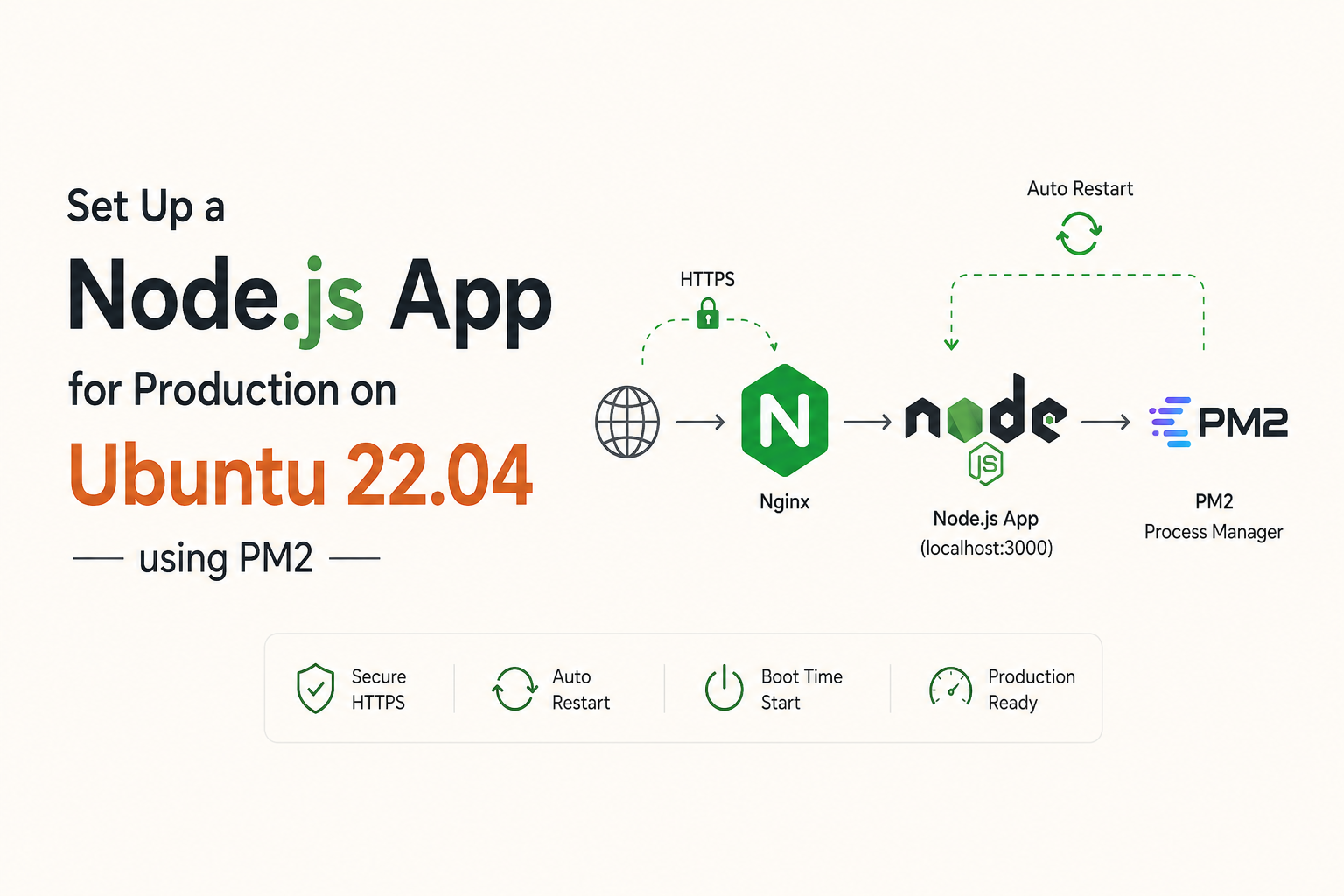
Running a Node.js app with node app.js is fine for testing, but it isn’t production. If the process crashes, your app goes offline. If the server reboots, nothing starts unless you log in and run it again.
The practical production setup is simple: run your Node.js app behind Nginx, manage the process with PM2, and serve traffic over HTTPS. PM2 keeps the app alive and starts it after reboots. Nginx handles public traffic, SSL termination, and reverse proxying to your local Node.js port.
Node.js is a free, open-source, cross-platform JavaScript runtime, so it’s a strong fit for APIs, web apps, dashboards, and internal tools. (Node.js) In this guide, we’ll set up a Node.js app for production on Ubuntu 22.04 using PM2 and Nginx, while keeping the example code deliberately small so you can replace it with your real app later.
Why This Problem Exists
A Node.js app does not become production-ready just because it runs on a VPS. The app process needs supervision, restart behaviour, boot persistence, HTTP routing, and HTTPS. Without those pieces, your deployment depends on an open terminal session.
Ubuntu 22.04 LTS is still a common server choice because Canonical lists standard security maintenance until May 2027, with expanded security maintenance after that. (Ubuntu) Node.js also remains heavily used. Stack Overflow’s 2025 Developer Survey lists Node.js among web technologies used by 48.3% of all respondents in that section. (Stack Overflow Insights) That means this stack is not niche. It’s normal production infrastructure.
The missing piece is usually process management. PM2 describes itself as a daemon process manager that helps keep Node.js applications online. (pm2.keymetrics.io) Its startup feature can generate scripts for init systems such as systemd, which is what Ubuntu 22.04 uses. (pm2.keymetrics.io) Nginx then sits in front of the app and forwards requests to the local Node.js process. The Nginx docs describe reverse proxying as passing client requests to proxied servers over different protocols. (docs.nginx.com)
The setup looks like this:
| Layer | Role | Production reason |
|---|---|---|
| Node.js | Runs the application code | Keeps business logic separate from the web server |
| PM2 | Manages the Node.js process | Restarts the app after crashes and server reboots |
| Nginx | Handles public web traffic | Routes HTTP and HTTPS requests to the app |
| Let’s Encrypt | Provides TLS certificates | Lets users access the app securely over HTTPS |
Let’s Encrypt provides free TLS certificates, which makes HTTPS practical even for small projects. (letsencrypt.org) Its certificates are currently issued for 90 days, with a planned move towards 45-day lifetimes by 2028. (letsencrypt.org) That short lifetime is why automated renewal matters.
The Solution: Node.js App for Production on Ubuntu
The production pattern is to bind your Node.js app to localhost, manage it with PM2, then expose it through Nginx. That keeps the app private to the server while Nginx handles public requests.
Before starting, you should already have an Ubuntu 22.04 server, a non-root user with sudo access, a domain pointed to the server, Nginx installed, Node.js installed, and SSL configured through Let’s Encrypt. If you’d rather hand this off, Hitori Tech handles this kind of work through our DevOps and cloud infrastructure services and managed web hosting.
Step 1 is to create the sample Node.js app. We’ll use app.js rather than hello.js so the PM2 process name looks closer to a real project name.
nano app.js
Paste this code into the file:
const http = require('http');

const hostname = 'localhost';
const port = 3000;

const server = http.createServer((req, res) => {
  res.statusCode = 200;
  res.setHeader('Content-Type', 'text/plain');
  res.end('Hello from Hitori App!\n');
});

server.listen(port, hostname, () => {
  console.log(`Server running at http://${hostname}:${port}/`);
});
This app listens only on localhost and port 3000. That is intentional. Public users should not connect directly to your Node.js process. Nginx will receive public traffic and proxy it internally.
Run the app:
node app.js
You should see:
Server running at http://localhost:3000/
Open a second terminal session and test it with curl:
curl http://localhost:3000
Expected output:
Hello from Hitori App!
Once the test works, stop the app with CTRL+C.
Step 2 is to install PM2. PM2 runs your app in the background and gives you commands to start, stop, restart, inspect, and monitor it.
sudo npm install pm2@latest -g
Start the application with PM2:
pm2 start app.js
PM2 will add the app to its process list. Because the file is called app.js, the PM2 app name will usually be app.
Check the list:
pm2 list
PM2 can restart the app if it crashes, but you also need it to survive server reboots. Generate the startup command:
pm2 startup systemd
PM2 will print a command that looks similar to this:
sudo env PATH=$PATH:/usr/bin /usr/lib/node_modules/pm2/bin/pm2 startup systemd -u sammy --hp /home/sammy
Run the exact command PM2 gives you, replacing nothing unless you know your username and home path differ.
Now save the current PM2 process list:
pm2 save
Start the systemd service for your user. Replace sammy with your Linux username:
sudo systemctl start pm2-sammy
Check the service status:
systemctl status pm2-sammy
At this point, your Node.js app is managed properly. It runs in the background, PM2 knows about it, and systemd can bring PM2 back after a reboot.
Step 3 is to configure Nginx as a reverse proxy. Open your Nginx site config. Replace example.com with your own domain config file.
sudo nano /etc/nginx/sites-available/example.com
Inside the server block, use this location / block:
server {
...
    location / {
        proxy_pass http://localhost:3000;
        proxy_http_version 1.1;
        proxy_set_header Upgrade $http_upgrade;
        proxy_set_header Connection 'upgrade';
        proxy_set_header Host $host;
        proxy_cache_bypass $http_upgrade;
    }
...
}
This sends requests from your domain root to the Node.js app running locally on port 3000.
You can also run another app on the same server by using a different internal port and path. For example, if another Node.js app listens on port 3001, you can expose it at /app2:
server {
...
    location /app2 {
        proxy_pass http://localhost:3001;
        proxy_http_version 1.1;
        proxy_set_header Upgrade $http_upgrade;
        proxy_set_header Connection 'upgrade';
        proxy_set_header Host $host;
        proxy_cache_bypass $http_upgrade;
    }
...
}
Test the Nginx config before restarting:
sudo nginx -t
If the test passes, restart Nginx:
sudo systemctl restart nginx
Visit your domain in a browser. You should see:
Hello from Hitori App!
That gives you a working Node.js app for production on Ubuntu with PM2 handling the process and Nginx handling public traffic.
PM2 vs systemd vs Docker for Node.js Production
PM2 is the simplest production option for a small Node.js app on one VPS. Docker is better when you want repeatable environments, multiple services, or easier CI/CD. Plain systemd works, but you’ll write more service configuration yourself.
| Option | Best for | Complexity | Main trade-off |
|---|---|---|---|
| PM2 + Nginx | Small to medium Node.js apps on a VPS | Low | Less portable than containers |
| systemd + Nginx | Teams that want native Linux service files | Medium | More manual configuration |
| Docker + Nginx or Traefik | Multi-service apps and CI/CD deployments | Medium to high | More moving parts |
| Managed platform | Teams that don’t want server admin | Low | Less control and higher monthly cost |
For most early production deployments, PM2 + Nginx is enough. It’s fast to set up, easy to understand, and simple to debug over SSH. If you later move towards containerised deployment, read our related guide on deploying a full-stack app on AWS EC2.
Common Mistakes and How to Avoid Them
The most common mistake we see is binding the Node.js app to 0.0.0.0 when it only needs to sit behind Nginx. Binding to localhost keeps the app private to the server. Nginx should be the public entry point.
Another mistake is forgetting pm2 save. Starting the app with PM2 is not enough if you want the process list restored after a reboot. Run pm2 startup systemd, run the generated command, then run pm2 save.
Nginx syntax errors are also easy to miss. Always run:
sudo nginx -t
before restarting Nginx. A missing semicolon in an Nginx file can stop your site from coming back cleanly.
Port conflicts cause confusion too. If your app already uses port 3000, either stop the other process or change the port in your Node.js file and Nginx config. Both sides must match.
The final mistake is treating SSL as a one-time setup. Let’s Encrypt certificates expire, so renewal needs to be automated and checked. A working HTTPS site today can become a browser warning later if renewals break.
Real-World Example
A small internal dashboard does not need Kubernetes on day one. We recently used this exact pattern for a lightweight operations app: Node.js on port 3000, PM2 as the process manager, and Nginx as the HTTPS reverse proxy.
Before the setup, the app was started manually during testing. After a reboot, it needed someone to SSH into the VPS and run the command again. After PM2 and systemd were configured, the app came back automatically after reboot. Nginx also let the client use a proper domain with HTTPS instead of an IP address and port number.
The practical result was a cleaner deployment with fewer failure points. Manual restart time went from several minutes of SSH checking to zero intervention after reboot. That’s the point of this setup. It’s not fancy. It’s reliable.
Frequently Asked Questions
What is the best way to run a Node.js app in production on Ubuntu?
The best simple setup is Node.js behind Nginx with PM2 managing the process. PM2 keeps the app running and restores it after reboots, while Nginx handles public HTTP and HTTPS traffic.
How do I keep a Node.js app running after closing SSH?
Use PM2 to start the app instead of running node app.js directly. The command pm2 start app.js runs the app in the background, and pm2 save stores the process list for reboot recovery.
Why should Node.js listen on localhost behind Nginx?
Node.js should listen on localhost so it is not exposed directly to the internet. Nginx becomes the public-facing service and forwards safe, controlled traffic to the internal Node.js port.
Which port should I use for a Node.js production app?
Port 3000 is common for a first Node.js app, but any unused local port works. The important part is that the port in your Node.js app matches the port in the Nginx proxy_pass rule.
Can I host multiple Node.js apps on one Ubuntu server?
Yes, you can host multiple Node.js apps on one server by giving each app a different local port. Nginx can route different domains, subdomains, or paths to each internal port.
Running a Node.js app for production on Ubuntu is mostly about removing manual steps. PM2 handles the process. Nginx handles the traffic. HTTPS protects users. If you want Hitori Tech to review, harden, or deploy your production stack, start with our contact page and we’ll help you ship it properly.