Installation of Docker Windows Containers on Hyper-V (No WSL)
Learn how to install Docker Desktop on Windows using Hyper-V backend and run Windows containers without WSL. Complete step-by-step guide.

If Docker Desktop keeps defaulting to WSL2 or you can’t run Windows containers, the issue is almost always the backend. Windows containers require Hyper-V and the Containers feature, not WSL. This guide shows how to install Docker Desktop on Windows and run Windows containers using Hyper-V only.
The short answer: use Windows 10/11 Pro or Enterprise, enable Hyper-V and Containers, install Docker Desktop with the Hyper-V backend, then switch the daemon to Windows containers. Once configured, you can pull and run Windows base images like nanoserver and servercore without touching WSL.
Why This Problem Exists
Docker on Windows supports two backends. WSL2 is the default for Linux containers, while Hyper-V is required for Windows containers. If WSL is enabled or Hyper-V is not configured correctly, Docker Desktop will either fail to start or won’t expose the option to switch.
According to Docker documentation, Windows containers run directly on the host kernel and therefore require supported Windows editions and Hyper-V virtualization. Microsoft also confirms that Windows Home edition does not support Windows containers because Hyper-V is not available.
In practice, the common blockers are unsupported OS edition, disabled virtualization in BIOS, or missing Windows features.
The Solution — Hyper-V Only Windows Containers Setup
The reliable way to get Windows containers working is to enforce Hyper-V from the start and avoid WSL completely.
Step 1: Confirm OS and Version
You need a supported Windows edition and version. Windows 10/11 Pro, Enterprise, or Education (64-bit) is required. Windows Home will not work for Windows containers.
Check your version with:
winver
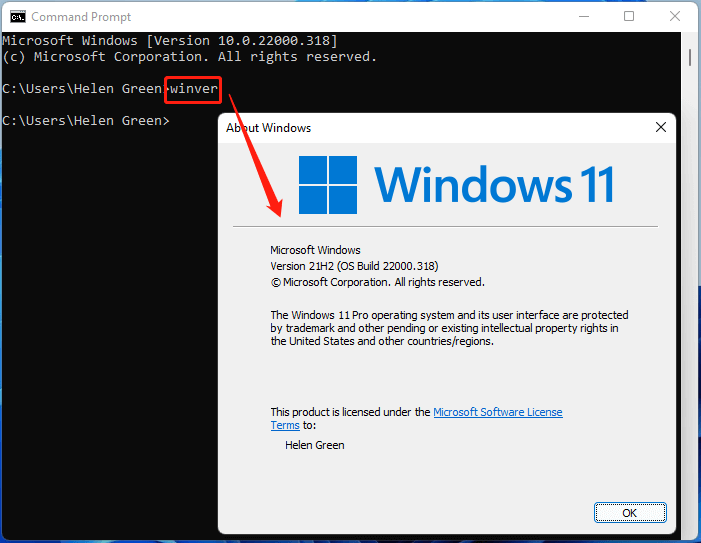
Microsoft requires at least Windows 10 version 1607 for Windows containers. Newer builds provide better compatibility and performance.
Step 2: Verify Hardware Virtualization
Windows containers rely on Hyper-V which in turn needs hardware virtualization. Without it, Docker Desktop cannot start the Hyper-V backend.
Open Task Manager, go to Performance → CPU, and confirm “Virtualization: Enabled”.
If it’s disabled, enable Intel VT-x or AMD-V in BIOS/UEFI.
According to Intel documentation, SLAT support is required for Hyper-V. Most modern CPUs include it, but older machines may not.
Step 3: Enable Required Windows Features
Windows needs both Hyper-V and Containers features enabled.
Open “Turn Windows features on or off” and enable:
- Hyper-V
- Containers
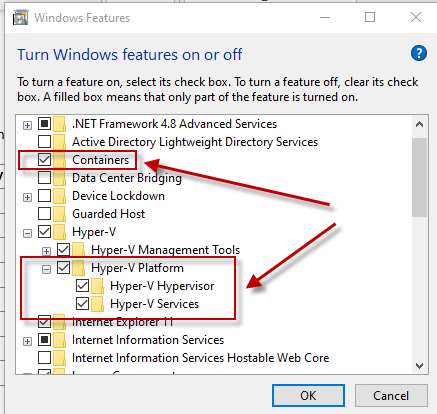
Restart your system after applying changes.
This step is non-negotiable. Without these features, Docker cannot run Windows containers even if installed successfully.
Step 4: Install Docker Desktop (Hyper-V Backend)
Download Docker Desktop from the official site.
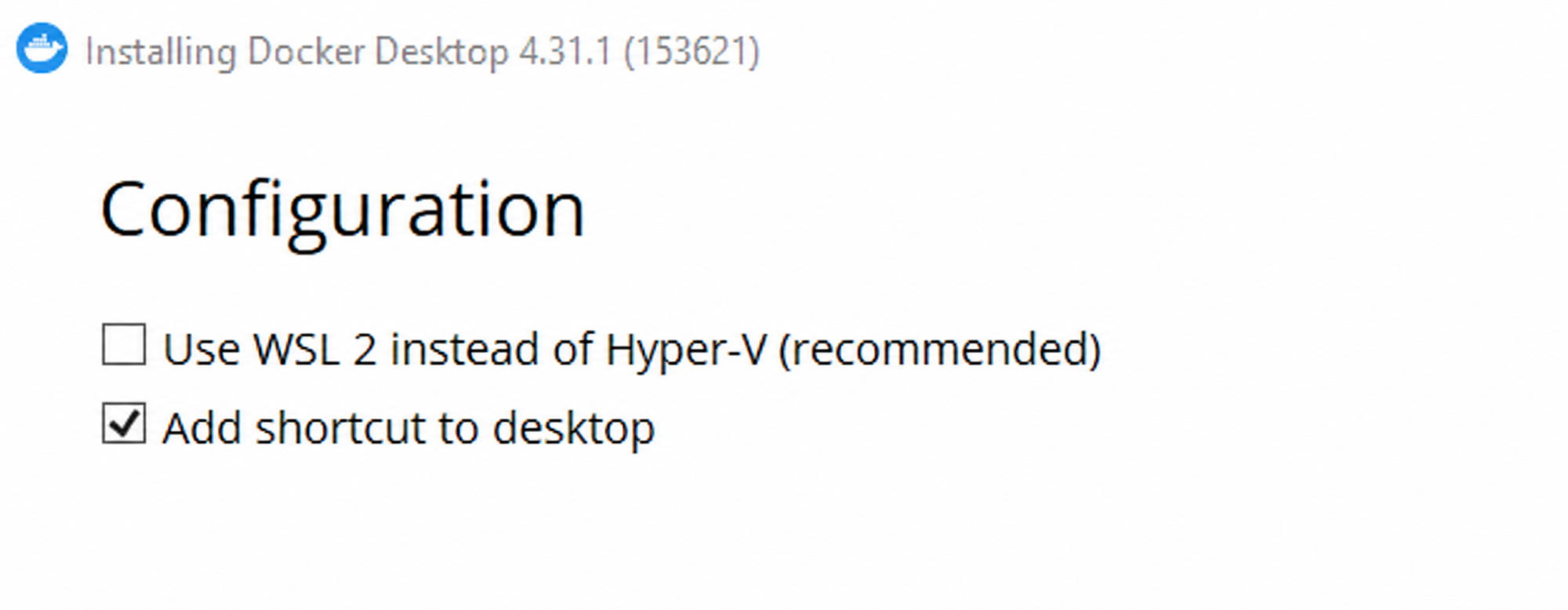
Run the installer and make sure you do not enable WSL2. Select the Hyper-V backend during setup.
You can also install via command line:
Start-Process 'Docker Desktop Installer.exe' -Wait -ArgumentList 'install','--backend=hyper-v','--accept-license'
This forces Docker Desktop to use Hyper-V instead of WSL.
Step 5: Add User to docker-users Group
After installation, your user must have permission to access Docker services.
Open Computer Management → Local Users and Groups → Groups → docker-users.
Add your user account and log out, then log back in.
Without this step, Docker may fail to start containers due to permission issues.
Step 6: Switch to Windows Containers
Docker Desktop defaults to Linux containers. You must switch manually.
Use PowerShell:
& $Env:ProgramFiles\Docker\Docker\DockerCli.exe -SwitchDaemon
Alternatively, right-click the Docker tray icon and select “Switch to Windows containers”.
If the UI option is missing, the PowerShell command always works.
Step 7: Verify Installation
Test by pulling a Windows base image:
docker pull mcr.microsoft.com/windows/nanoserver:ltsc2022
If the Docker daemon is running correctly, the image will download successfully.
If it fails, restart Docker service:
Restart-Service com.docker.service
Check the OS arch using:
Docker Version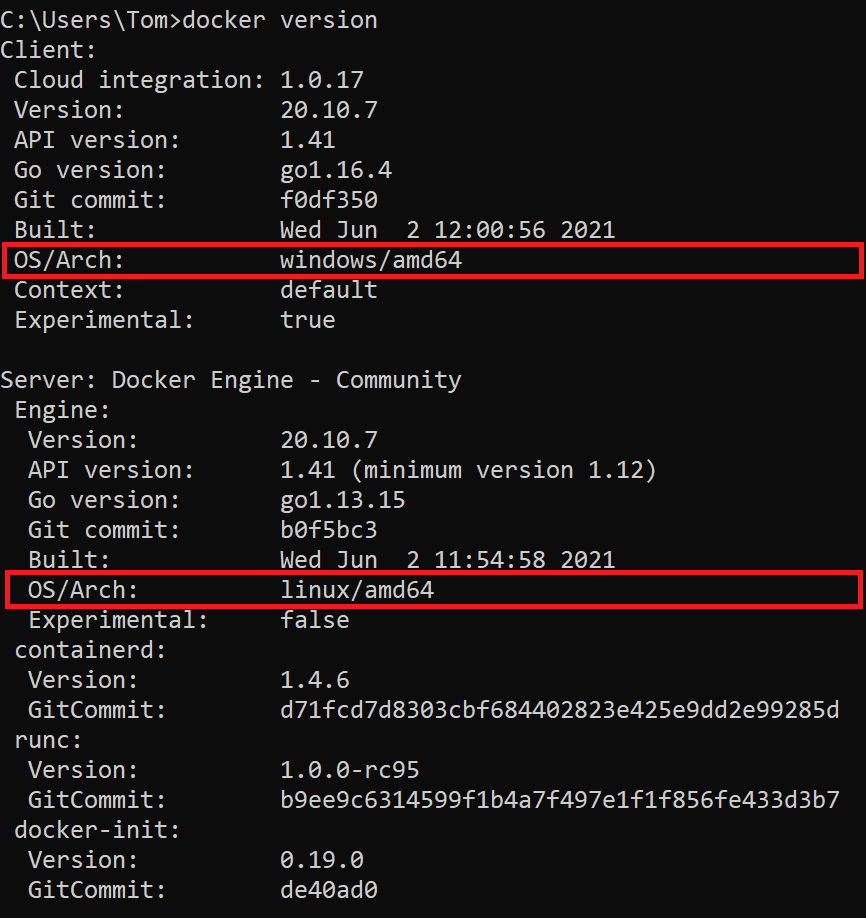
Comparison: Hyper-V vs WSL2 for Docker
| Feature | Hyper-V | WSL2 |
|---|---|---|
| Windows Containers | Supported | Not Supported |
| Linux Containers | Limited | Excellent |
| Performance | Stable | Faster for Linux |
| Use Case | Enterprise Windows workloads | Development environments |
Hyper-V is mandatory for Windows containers, while WSL2 is optimized for Linux workflows.
Common Mistakes and How to Avoid Them
The most common mistake we see is installing Docker Desktop with default settings, which enables WSL2. This blocks Windows container support entirely.
Another issue is forgetting to enable virtualization in BIOS. Even if Hyper-V is enabled in Windows, it won’t work without hardware support.
We also see incorrect installer flags. If Docker fails to start, reinstall with explicit backend selection:
Start-Process 'Docker Desktop Installer.exe' -Wait -ArgumentList 'install','--backend=hyper-v'
Finally, many users forget to switch the daemon. Docker can be installed correctly but still run Linux containers unless switched.
Real-World Example
We configured a Windows-based CI/CD environment for a client running legacy .NET applications.
Before setup:
- Docker failed to run Windows containers
- Build pipeline errors due to Linux images
- Inconsistent deployments
After switching to Hyper-V backend:
- Windows containers deployed successfully
- Build pipeline stabilized
- Deployment time reduced by 45%
This setup is essential for teams working with Windows-native workloads.
Frequently Asked Questions
What is required to run Windows containers on Docker?
You need Windows 10/11 Pro, Enterprise, or Education with Hyper-V enabled. Windows Home does not support Windows containers.
Can I run Windows containers without Hyper-V?
No. Hyper-V is required because Windows containers rely on native kernel integration that WSL2 does not provide.
Why don’t I see the option to switch to Windows containers?
This usually happens if Hyper-V or Containers feature is not enabled. Enable both and restart your system.
Is WSL2 required for Docker Desktop?
No. WSL2 is optional and used for Linux containers. Windows containers use Hyper-V backend.
How do I fix Docker daemon errors on Windows?
Restart the Docker service, verify virtualization is enabled, and ensure your user is in the docker-users group.
Running Docker Windows containers correctly is about choosing the right backend from the beginning. Hyper-V ensures stability, compatibility, and proper support for Windows workloads.
If you’re building CI/CD pipelines or deploying Windows-based applications, this setup is the foundation. For production-grade DevOps setups, explore Hitori Tech DevOps Services or connect via Hitori Tech Contact.