Docker Desktop Stuck on Starting in Windows
Fix Docker Desktop stuck on Starting in Windows with WSL updates, Docker distro repair, virtualization checks, reset options, and safe reinstall steps.

If Docker Desktop is stuck on “Starting” in Windows, the issue is usually caused by a broken WSL2 backend, corrupted Docker Desktop data, disabled virtualization, damaged Windows optional features, or a Docker update that left the docker-desktop WSL distro in a bad state. This guide gives you the safest fix order for Windows 10 and Windows 11 in 2026, starting with low-risk repairs before moving to destructive resets.
The short answer: restart Windows, run Docker Desktop as Administrator, update WSL with wsl --update, shut it down with wsl --shutdown, then start Docker again. If Docker still hangs on “Starting”, check virtualization and Windows features, repair the Docker WSL distros, reset Docker Desktop, or fully remove Docker’s AppData and WSL distributions before reinstalling. Do not unregister docker-desktop-data unless you’re ready to lose local Docker images, containers, and volumes.
Why Docker Desktop Gets Stuck on Starting
Docker Desktop gets stuck on “Starting” because the Docker engine cannot finish booting its backend. On Windows, that backend is usually WSL2, although Hyper-V can still be used in some installation modes.
Docker Desktop on Windows depends on several layers working together: Windows virtualization, WSL2, the Linux kernel used by WSL, Docker Desktop’s internal distros, the Docker service, networking, file sharing, and user permissions. If one layer breaks, the UI may continue showing “Starting” while the actual failure is hidden in WSL or Docker logs.
Docker’s current Windows documentation says Docker Desktop supports WSL2 and Hyper-V backends, but per-user installation supports the WSL2 backend only. It also notes that Windows containers are only available in all-users installation mode, not per-user mode. That matters because many “Docker stuck starting” fixes fail when the user is trying to switch container modes or use a backend that their installation mode does not support. (Docker Documentation)
The most common 2026 cause is outdated or corrupted WSL. Docker’s WSL best-practices page says to always use the latest WSL version and states that WSL must be at least version 2.1.5; older versions can cause Docker Desktop to hang periodically or when upgrading. (Docker Documentation)
Microsoft also recommends keeping the Microsoft Store version of WSL updated so you receive WSL updates as soon as they are available. The official WSL command reference supports commands such as wsl --update, wsl --shutdown, wsl --list, and wsl --status, which are the exact commands you need for Docker Desktop troubleshooting. (Microsoft Learn)
The other common cause is broken virtualization. Microsoft’s WSL troubleshooting documentation states that errors such as 0x80370102 can occur when virtualization is not enabled in BIOS, and WSL2 also requires CPU support for Second Level Address Translation, or SLAT. (Microsoft Learn)
So the issue is rarely “Docker is bad.” More often, Docker is waiting for Windows, WSL, virtualization, networking, or its internal distro state to recover.
The Solution — The Hitori Docker Desktop Recovery Path
The best way to fix Docker Desktop stuck on “Starting” is to move from safe fixes to destructive fixes. Start by restarting WSL and Docker services. Then check virtualization and Windows features. Then repair the Docker Desktop WSL distros. Only reset Docker data when the normal repair path fails.
Step 1: Restart Windows and run Docker as Administrator
Start with the simple fix because it works more often than people expect. Restart Windows fully, then right-click Docker Desktop and choose “Run as administrator.”
This helps when Docker Desktop is waiting for a service, permission, Hyper-V component, WSL backend, or network adapter that did not initialize correctly after a Windows update.
After Docker opens, wait two or three minutes. If it still shows “Starting”, continue with PowerShell.
Open PowerShell as Administrator and run:
wsl --status
wsl --list --verbose
You are looking for entries like:
docker-desktop
docker-desktop-data
Ubuntu
If docker-desktop is stuck, stopped, uninstalling, or not responding, the WSL backend is likely the cause.
Step 2: Update WSL and restart the WSL engine
Update WSL first. This is the most important 2026 fix because older WSL versions are known to cause Docker Desktop hangs during startup or upgrade.
Run this in PowerShell as Administrator:
wsl --update
wsl --shutdown
Then start Docker Desktop again.
Microsoft documents wsl --shutdown as a fast way to restart all WSL2 distributions, but it shuts down all running distributions, so close any active Linux work first. (Microsoft Learn)
If Docker starts after this, the issue was likely a stuck WSL session or outdated WSL backend.
Step 3: Confirm Windows features are enabled
Docker Desktop with WSL2 needs the correct Windows optional features. Open PowerShell as Administrator and check:
Get-WindowsOptionalFeature -Online -FeatureName Microsoft-Windows-Subsystem-Linux
Get-WindowsOptionalFeature -Online -FeatureName VirtualMachinePlatform
Both should be enabled.
To enable them:
dism.exe /online /enable-feature /featurename:Microsoft-Windows-Subsystem-Linux /all /norestart
dism.exe /online /enable-feature /featurename:VirtualMachinePlatform /all /norestart
Then restart Windows:
Restart-Computer
If you are using Hyper-V mode or Windows containers, also check Hyper-V and Containers:
Get-WindowsOptionalFeature -Online -FeatureName Microsoft-Hyper-V-All
Get-WindowsOptionalFeature -Online -FeatureName Containers
Enable them if needed:
dism.exe /online /enable-feature /featurename:Microsoft-Hyper-V-All /all /norestart
dism.exe /online /enable-feature /featurename:Containers /all /norestart
Restart again after enabling these features.
Step 4: Check BIOS virtualization
Docker Desktop can’t run properly if CPU virtualization is disabled. Open Task Manager, go to Performance, select CPU, and check whether “Virtualization” says Enabled.
If it says Disabled, restart the machine, enter BIOS or UEFI settings, and enable the correct option. The setting name depends on your CPU and motherboard. Intel systems often call it Intel VT-x or Intel Virtualization Technology. AMD systems often call it SVM Mode or AMD-V.
After enabling it, boot into Windows and run:
systeminfo
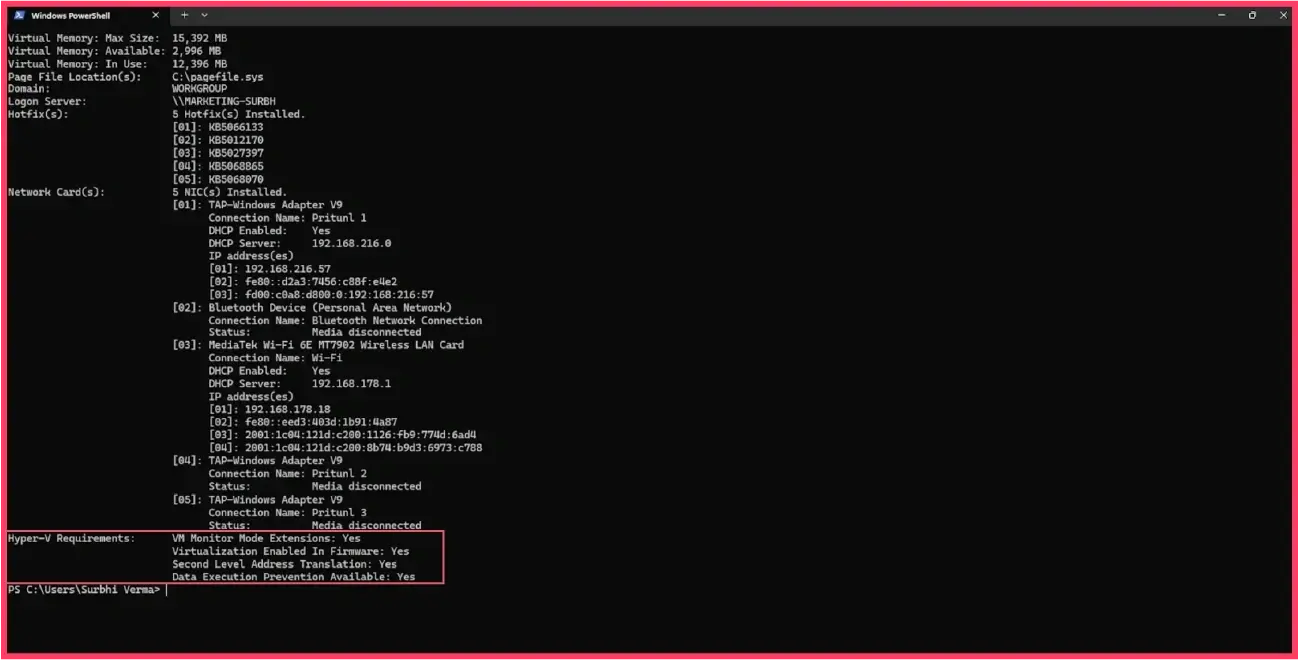
Look for Hyper-V requirement lines. They should not show virtualization as unavailable.
This step is especially important after BIOS updates because some systems reset virtualization settings to default.
Step 5: Restart Docker services
If WSL is healthy but Docker Desktop is still stuck, restart Docker services.
Run PowerShell as Administrator:
Get-Service *docker*
Then try:
Restart-Service com.docker.service
If the service does not restart cleanly, stop Docker Desktop from Task Manager and try again.
You can also kill Docker Desktop processes:
taskkill /F /IM "Docker Desktop.exe"
taskkill /F /IM "com.docker.backend.exe"
taskkill /F /IM "vpnkit.exe"
Then restart Docker Desktop.
Step 6: Fix Docker Desktop WSL distros
If Docker Desktop still hangs, inspect the internal Docker WSL distributions:
wsl --list --verbose
A healthy output may look like:
  NAME                   STATE           VERSION
* Ubuntu                 Stopped         2
  docker-desktop         Stopped         2
  docker-desktop-data    Stopped         2
If docker-desktop is broken, you can unregister only that distro first:
wsl --unregister docker-desktop
Then restart Docker Desktop. Docker should recreate docker-desktop.
This is safer than removing docker-desktop-data.
Do not run this next command unless you accept losing Docker’s local images, containers, volumes, and build cache:
wsl --unregister docker-desktop-data
docker-desktop-data stores Docker’s local data. Removing it is a destructive reset. It can fix corrupted Docker storage, but it also removes local container data.
Use it only after exporting anything important.
Step 7: Reset Docker Desktop to factory defaults
If the Docker UI opens but never reaches “Engine running”, use Docker’s reset option.
Open Docker Desktop, go to Troubleshoot, then choose Reset to factory defaults.
This is easier than manually deleting files, but it can remove containers, images, volumes, and settings depending on the reset path.
After reset, restart Windows and open Docker Desktop again.
Step 8: Clear Docker AppData manually
If factory reset fails or Docker Desktop will not open far enough to access Troubleshoot, remove Docker’s local configuration manually.
Close Docker completely. Then run PowerShell as Administrator:
taskkill /F /IM "Docker Desktop.exe"
taskkill /F /IM "com.docker.backend.exe"
wsl --shutdown
Then remove Docker AppData folders:
Remove-Item -Recurse -Force "$env:LOCALAPPDATA\Docker" -ErrorAction SilentlyContinue
Remove-Item -Recurse -Force "$env:APPDATA\Docker" -ErrorAction SilentlyContinue
Remove-Item -Recurse -Force "$env:APPDATA\Docker Desktop" -ErrorAction SilentlyContinue
Restart Windows and open Docker Desktop.
If it still fails, uninstall Docker Desktop, restart Windows, install the latest version from Docker’s official installer page, and restart again. Docker’s Windows install page is the safest place to confirm current requirements and supported installation modes. (Docker Documentation)
Step 9: Repair networking only if Docker starts but containers cannot connect
Do not reset Windows networking too early. It can break VPNs, virtual adapters, Hyper-V switches, and corporate network profiles.
Use this only if Docker starts, but containers cannot access networks, DNS is broken, or WSL networking is clearly damaged.
Run PowerShell as Administrator:
wsl --shutdown
netsh winsock reset
netsh int ip reset
Restart Windows.
If Hyper-V or WSL network adapters are badly corrupted, some admins use:
netcfg -d
This removes and reinstalls network adapters. Treat it as a last resort because it can remove VPN adapters, virtual switches, and custom network settings.
Fix Options Compared
The safest fix is not always the fastest fix. Use this table to choose the right level of repair.
| Fix | Data loss risk | Best use case | Command or action |
|---|---|---|---|
| Restart Windows and run as Admin | None | Docker stuck after sleep, update, or reboot | Restart, then Run as administrator |
| Update and shutdown WSL | None | WSL backend stuck or outdated | wsl --update, wsl --shutdown |
| Enable Windows features | None | WSL or virtualization components missing | DISM commands |
| Restart Docker service | Low | Docker service is stuck | Restart-Service com.docker.service |
Unregister docker-desktop | Low | Internal Docker distro is corrupted | wsl --unregister docker-desktop |
| Factory reset Docker | Medium to high | Docker config/storage is corrupted | Docker Troubleshoot menu |
Unregister docker-desktop-data | High | Docker storage is corrupted | wsl --unregister docker-desktop-data |
| Delete AppData and reinstall | High | Docker Desktop installation is damaged | Remove AppData, reinstall |
| Reset Windows networking | Medium | Docker starts but networking fails | netsh or netcfg -d |
For most machines, the winning sequence is wsl --update, wsl --shutdown, restart Docker, then unregister docker-desktop if needed.
Common Mistakes and How to Avoid Them
The most common mistake we see is deleting docker-desktop-data too early. That distro stores Docker’s local data. If you unregister it before exporting important containers or volumes, you can lose development databases, local images, and build cache. Start with docker-desktop, not docker-desktop-data.
The second mistake is ignoring WSL version. Docker’s own WSL best-practices page says older WSL versions can cause Docker Desktop to hang or fail during upgrades. If you’re troubleshooting Docker in 2026 and you do not run wsl --update, you are skipping one of the highest-probability fixes. (Docker Documentation)
The third mistake is switching to Windows containers as a random fix. Windows containers are useful when you are running Windows-based container workloads, but they will not fix a Linux-container WSL backend issue unless your actual workload can run as Windows containers. Docker also notes that Windows containers are supported only in all-users installation mode. (Docker Documentation)
The fourth mistake is reinstalling Docker without removing broken WSL state. If the problem is inside docker-desktop or docker-desktop-data, a normal uninstall/reinstall may leave the same broken backend behind. That is why a clean reinstall sometimes needs WSL unregister commands and AppData cleanup.
The fifth mistake is storing project files in slow or unstable locations. Docker recommends using the Linux filesystem for bind mounts with Linux containers because file system performance is better than bind mounting from the Windows filesystem. (Docker Documentation) This matters less for startup, but it matters a lot for performance and reliability after Docker starts.
Real-World Example
A common 2026 case looks like this. A developer updates Windows 11, restarts, opens Docker Desktop, and Docker stays on “Starting the Docker Engine” for 10 minutes. Running docker ps returns a daemon connection error. WSL still shows Ubuntu installed, but docker-desktop is stopped or stuck.
The fix path is usually fast. Open PowerShell as Administrator, run wsl --update, run wsl --shutdown, reboot Windows, then start Docker Desktop as Administrator. If that fails, run wsl --list --verbose and unregister only docker-desktop. Docker Desktop recreates it on the next launch.
In many cases, that avoids a full Docker reinstall and keeps local Docker data intact. If the issue continues after unregistering docker-desktop, then factory reset or unregistering docker-desktop-data becomes reasonable, but only after you accept the data-loss risk.
At Hitori Tech, we usually treat Docker Desktop startup failures as a layered Windows problem, not just a Docker problem. The recovery order is Windows restart, WSL repair, feature validation, Docker service repair, Docker WSL distro repair, then destructive reset. For teams running Docker-based workflows, N8N automation can also be used to collect machine status, WSL versions, Docker versions, and error logs before support teams touch each workstation.
Diagnostic Commands to Run Before Reinstalling
Before uninstalling Docker Desktop, collect basic information. This helps you understand whether the problem is WSL, Docker, virtualization, or Windows features.
Run these commands in PowerShell as Administrator:
wsl --version
wsl --status
wsl --list --verbose
docker version
docker context ls
Get-Service *docker*
Check Windows features:
Get-WindowsOptionalFeature -Online -FeatureName Microsoft-Windows-Subsystem-Linux
Get-WindowsOptionalFeature -Online -FeatureName VirtualMachinePlatform
Get-WindowsOptionalFeature -Online -FeatureName Microsoft-Hyper-V-All
Get-WindowsOptionalFeature -Online -FeatureName Containers
Check Windows version:
winver
Check virtualization:
systeminfo
If Docker Desktop is installed but docker version cannot reach the server, the CLI is installed but the engine is not running. That points to Docker Desktop backend startup, not your project code.
Frequently Asked Questions
What is the fastest fix for Docker Desktop stuck on Starting?
The fastest fix is to update and restart WSL, then restart Docker Desktop. Open PowerShell as Administrator and run wsl --update, then wsl --shutdown, restart Windows, and open Docker Desktop as Administrator. This fixes many cases where Docker Desktop is stuck because the WSL2 backend is frozen or outdated.
How do I fix Docker Desktop stuck on Starting without losing data?
You fix Docker Desktop without losing data by starting with non-destructive repairs: restart Windows, update WSL, shut down WSL, enable required Windows features, restart Docker services, and unregister only docker-desktop. Avoid unregistering docker-desktop-data unless you accept losing local Docker images, containers, volumes, and build cache.
Why is Docker Desktop stuck after a Windows update?
Docker Desktop can get stuck after a Windows update because WSL, virtualization features, network adapters, or Docker’s internal WSL distros may be left in a bad state. Microsoft notes that WSL features can be affected by Windows update or configuration changes, and Docker recommends keeping WSL updated because old versions can cause Docker Desktop hangs. (Microsoft Learn)
What does unregistering docker-desktop do?
Unregistering docker-desktop removes Docker Desktop’s internal WSL distro, which Docker can recreate on startup. This is usually safer than unregistering docker-desktop-data. Removing docker-desktop-data is destructive because it can delete local Docker images, containers, volumes, and build cache.
Should I reinstall Docker Desktop to fix Starting forever?
You should reinstall Docker Desktop only after WSL update, WSL shutdown, Windows feature checks, Docker service restart, and docker-desktop distro repair fail. A normal reinstall may not fix corrupted WSL state unless you also clean Docker AppData or unregister broken Docker WSL distros. Reinstalling too early wastes time and may still leave the same issue behind.
Can I use Hyper-V instead of WSL2 for Docker Desktop?
You can use Hyper-V instead of WSL2 only in supported Docker Desktop installation modes. Docker’s Windows documentation says per-user installation supports the WSL2 backend only, while all-users installation can support WSL2 or Hyper-V. Windows containers are also supported only in all-users installation mode. (Docker Documentation)
Docker Desktop stuck on “Starting” is annoying, but it is usually fixable without wiping your whole development setup. Start with WSL update and shutdown, confirm virtualization and Windows features, repair the Docker WSL distro, then move to reset or reinstall only if needed. If your team keeps losing development time to Docker, WSL, CI/CD, or local DevOps issues, you can explore Hitori Tech’s services or contact us for a cleaner development and deployment setup.